

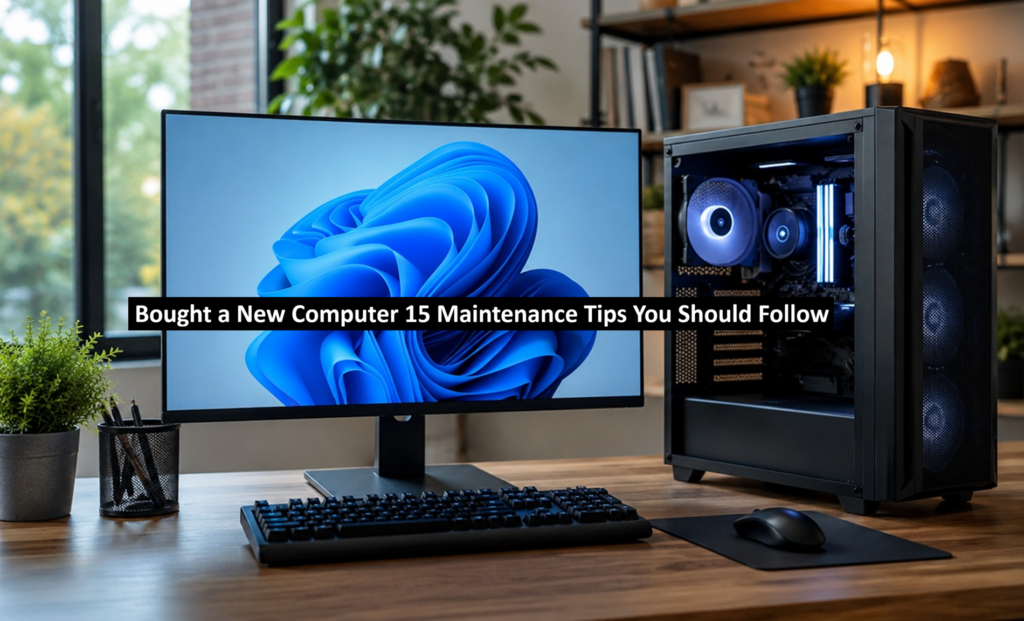
Unboxing a new computer is exciting. Isn’t it? Well, yes! The screen looks sharp, the system runs quietly, and every program responds instantly. It feels unstoppable. Yet over time, that smooth performance fades. Dust collects, files stack up, and updates get skipped. Slowly, the machine begins to lose its shine.
Here’s the upside: you can keep your computer running like new for years. It doesn’t demand heavy work. Just a few easy routines practiced regularly. Think of it like daily hygiene: missing once won’t matter, but long neglect will.
This guide is for anyone who wants their new computer to stay fast and reliable. We’ll walk through straightforward maintenance steps that protect both the hardware inside and the software you use every day.
Get Ready Before You Start: Key Precautions to Take
Before you touch any settings or open the case, there are a few things you should keep in mind. These precautions will protect your computer and keep you safe while you take care of it.
- Turn off the computer first. Never clean or adjust hardware while the machine is running. Shut it down and unplug it before you touch anything inside or around the ports.
- Use the right tools. A dry microfiber cloth and a can of compressed air work well. Avoid paper towels, as they can scratch surfaces and leave lint behind.
- Keep liquids far away. Avoid spraying cleaner straight onto your screen or keyboard. Apply it to a soft cloth first, then wipe carefully.
- Ground yourself before touching internal parts. If you ever open the case, touch a metal surface first. This removes static charge that could damage sensitive parts.
- Back up your files regularly. Before making any big changes, save your important files to a cloud drive or an external disk.
- Don’t skip official updates. Only download updates and drivers from official websites. Random pop-ups asking you to update something are often unsafe.
- Give your computer breaks. Running it non-stop for days without rest can raise heat levels. Shut it down or restart it every so often to let it cool and refresh.
15 Simple Maintenance Tips for a Long-Lasting Computer
Now that you know the basic precautions, let’s get into the actual work. Below are 15 easy computer maintenance tips. Some deal with the hardware, like fans and ports. Others deal with software, like updates and storage.
Together, they cover everything your new computer needs to stay in top shape.
Read: Surface Mount Technology Is Accelerating Electronics Manufacturing
1. Keep the Operating System Updated
Your computer’s operating system releases updates on a regular basis. These updates repair glitches and strengthen security. Ignoring them can leave your system exposed to risks.
Step 1. Open your system settings. Look for the update section.
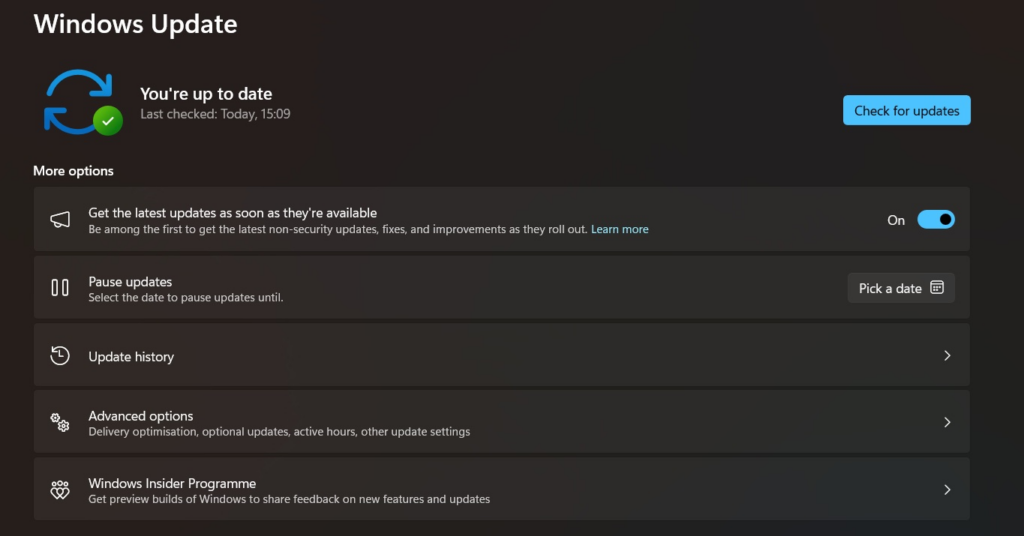
Step 2. Turn on automatic updates so your computer stays current without extra effort.
2. Clean the Keyboard and Vents
Dust and crumbs can build up fast, especially around the keys and air vents. This buildup can block airflow and cause the machine to run hotter.
Step 1. Turn off the computer and use compressed air to blow out dust from the keyboard and vents.
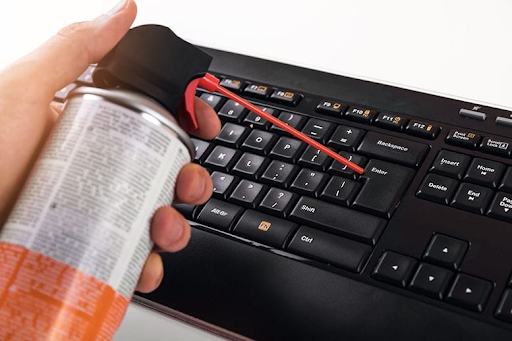
Step 2. Wipe the surface gently with a dry microfiber cloth.
3. Install a Trusted Antivirus Program
New computers are not automatically protected from every threat. A good antivirus tool blocks harmful files before they cause damage.
Step 1. Choose a well-known antivirus program and install it right away.
Step 2. Set it to scan your system automatically once a week.
4. Manage Startup Programs
Too many programs opening at startup can slow your computer down before you even begin working. Trimming this list helps your machine boot faster.
Step 1. Open the Task Manager. Check the Startup tab.
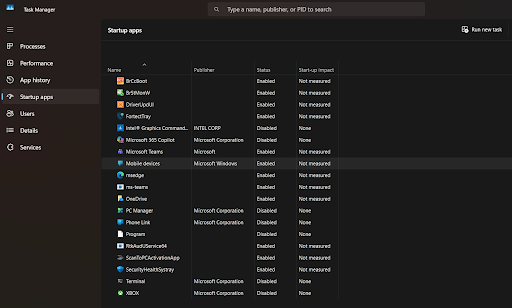
Step 2. Remove or quarantine anything flagged as suspicious.
12. Keep the Computer in a Cool, Dry Spot
Where you place your computer matters more than most people think. Heat and moisture can wear down parts faster.
Step 1. Set up your computer away from direct sunlight and heating vents.
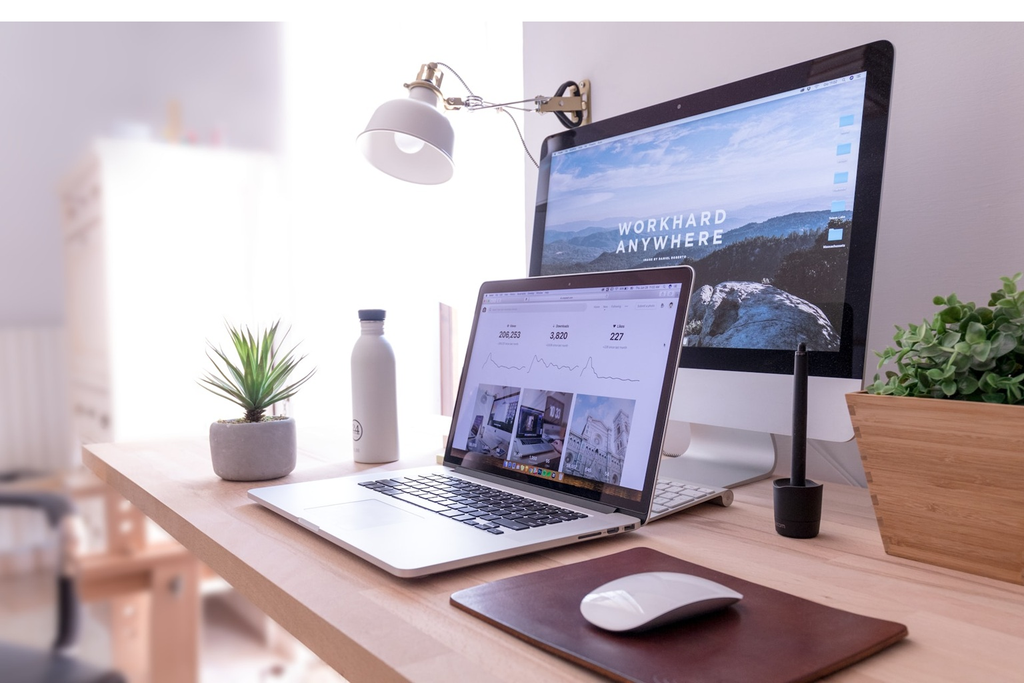
Step 2. Make sure there is space around it for air to flow freely.
13. Uninstall Programs You Don’t Use
Unused software takes up space and can run quietly in the background. Removing it frees up resources.
Step 1. Open your list of installed programs from the Control Panel or settings.
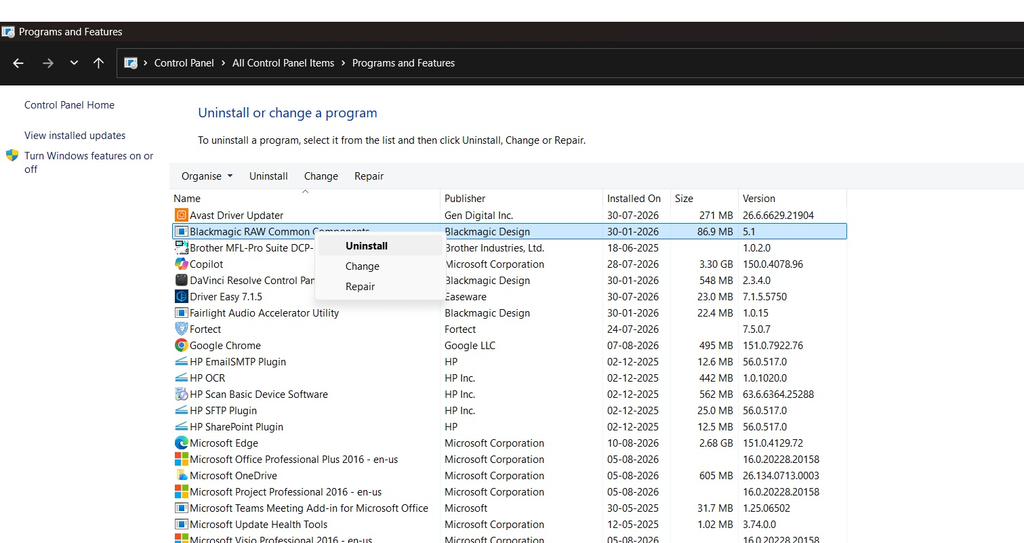
Step 2. Uninstall anything you have not used in the last few months.
14. Check Disk Health
Hard drives and solid-state drives can develop issues over time. Checking their health early can prevent data loss.
Step 1. Use your operating system’s built-in disk check tool.
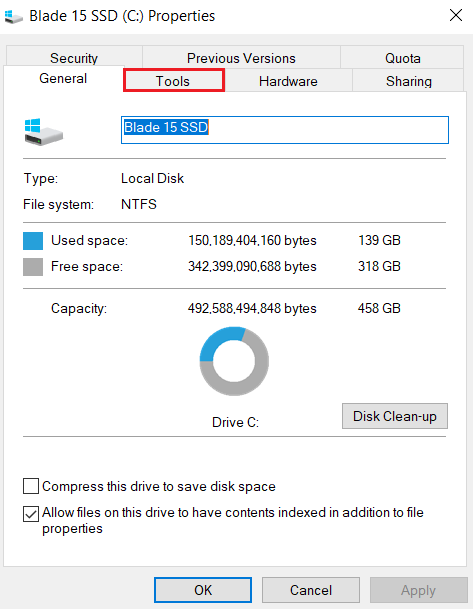
Step 2. Run the scan every few months and note any warnings that appear.
15. Restart Your Computer Often
Leaving your computer on for days without restarting can cause it to slow down. A simple restart clears out temporary issues.
Step 1. Restart your computer at least once every few days.
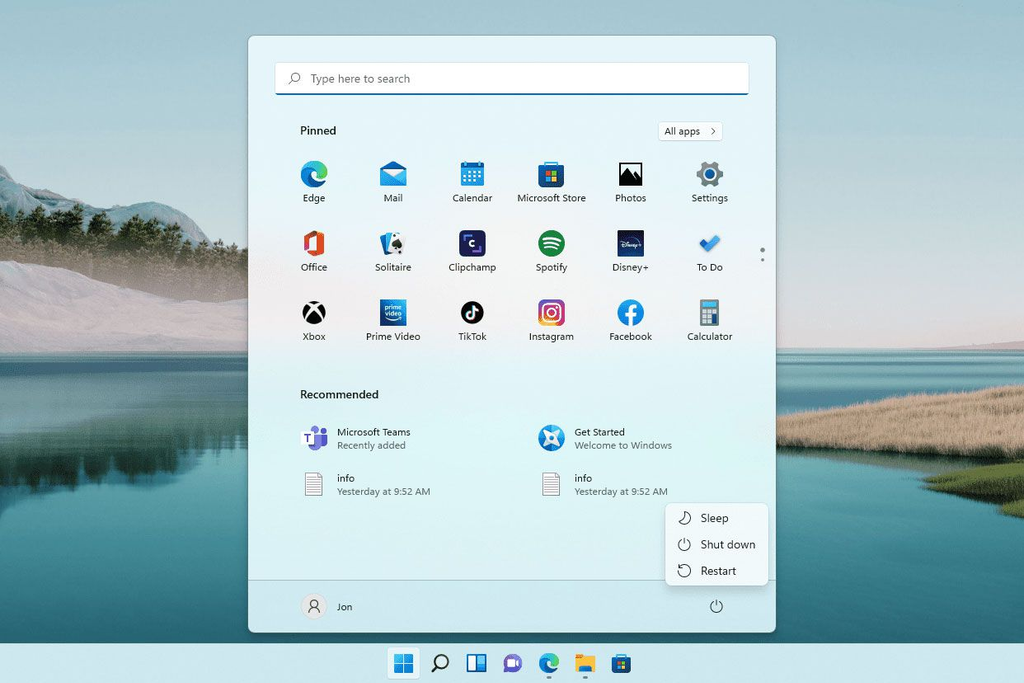
Step 2. Make sure it fully shuts down and boots up fresh, not just sleeps.
Following these steps regularly is one of the easiest ways to protect your investment. These computer maintenance tips do not take much time, but they add up to a big difference over months and years.
Additional Quick Tips to Keep in Mind
Beyond the main list, here are a few smaller habits that can also help your computer stay healthy over time.
- Label your cables. This makes it easier to unplug and reconnect things without confusion later.
- Use a dust cover when not in use. This is especially helpful if your computer sits in an open area of the house.
- Avoid eating over the keyboard. Crumbs and spills are one of the most common causes of keyboard damage.
- Check Wi-Fi drivers too. A slow internet connection is sometimes a driver issue, not a network issue.
- Turn off visual effects you don’t need. Fewer animations can free up resources on older or budget machines.
- Keep original packaging for a while. If you ever need to send the computer for repair, the original box helps protect it.
- Note your warranty details. Save the purchase receipt and warranty card somewhere safe, like a folder or cloud note.
- Avoid moving the computer while it’s on. This is especially true for desktops with spinning hard drives, as sudden movement can cause damage.
Conclusion
Buying a new computer is exciting, but keeping it running well takes a bit of ongoing care. The good news is that none of the steps above are hard. Most take just a few minutes, and many can be set up once and left to run on their own.
Think of these habits as small deposits into your computer’s long-term health. A quick round of PC cleaning here, a set of driver updates there, a backup set up once, and a restart every few days. None of it feels like much on its own, but together, it adds years to your machine’s life.
Whether you use your computer for work, school, or fun, sticking to these computer maintenance tips will keep it fast and reliable for a long time. Start with just a few tips from this list today, and build the rest into your routine over the coming weeks.
Frequently Asked Questions:
Do I really need antivirus software on a brand-new computer?
Yes, even new computers need protection. While many operating systems come with basic security tools built in, a dedicated antivirus program adds an extra layer of safety. Threats can come from downloads, email attachments, or unsafe websites, so having active protection from day one is a smart move.
Is it bad to leave my computer on all the time?
Leaving it on occasionally is fine, but doing it constantly for days can cause it to slow down and generate more heat. It is better to restart your computer every few days. This clears out temporary files and gives your system a fresh start, which helps it run more smoothly overall.
How often should I clean my new computer?
A light cleaning every two to three weeks is a good habit for most people. If you live in a dusty area or use your computer near pets, you may want to clean it a bit more often. Focus on the keyboard, vents, and screen, since these collect the most dust and debris over time. For internal cleaning and optimization purpose you can take help from tools to clean your PC. These programs will take care of regular cleaning tasks like remove junk files, temp files, cache etc.